Feature Update: Streamlined QR Code Update & Revocation via File-Drop
- Bhavin Sanghvi
- Jul 02, 2026
- 3 min read
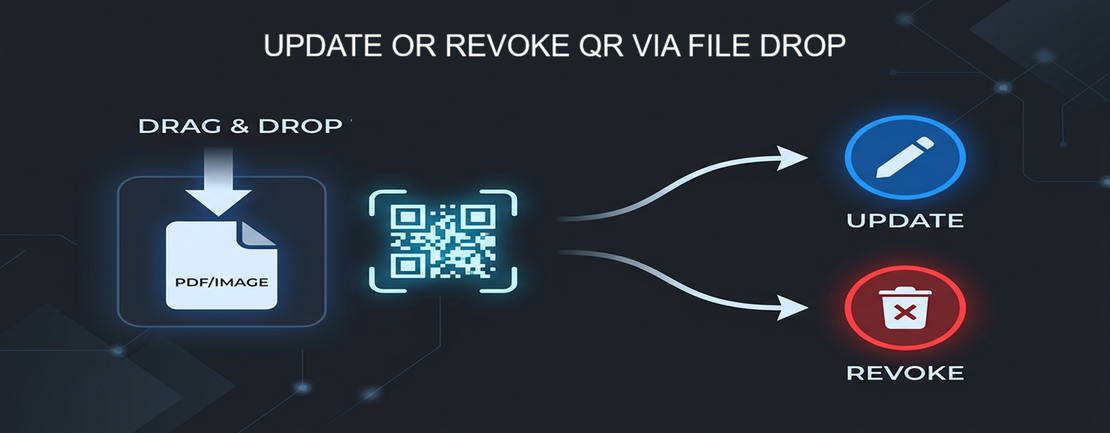
🚀 Effortlessly Update or Revoke Your QRs with File-Drop Uploads.
We are excited to announce a major usability enhancement to Qryptal’s verifiable document generation platform, Dash2: File-drop based Update and Revocation for generated QR codes.
This feature is designed to simplify how your team manages document lifecycles by eliminating the need to search through rows of activity logs when you need to make changes to an active QR code.
🔍 The Challenge Today
In secure document operations, business conditions change. An invoice might need to be adjusted, a training certificate might need updating, or a document might need to be revoked entirely due to changes in status.
Previously, to update or revoke an already-generated QR code inside the Dash2 console, your team had to:
- Navigate to the Activity page.
- Search or filter through logs to find the correct transaction ID or record.
- Click the respective Update or Revoke button.
While this process is secure and reliable, locating the specific log entry can be tedious and time-consuming, especially for organizations managing high-volume operations where only the printed document or QR image is readily available.
💡 The Solution: File-Drop Update and Revoke
Our new Update/Revoke via File feature allows your team to perform updates or revocations instantly by simply dragging and dropping the document containing the QR code.
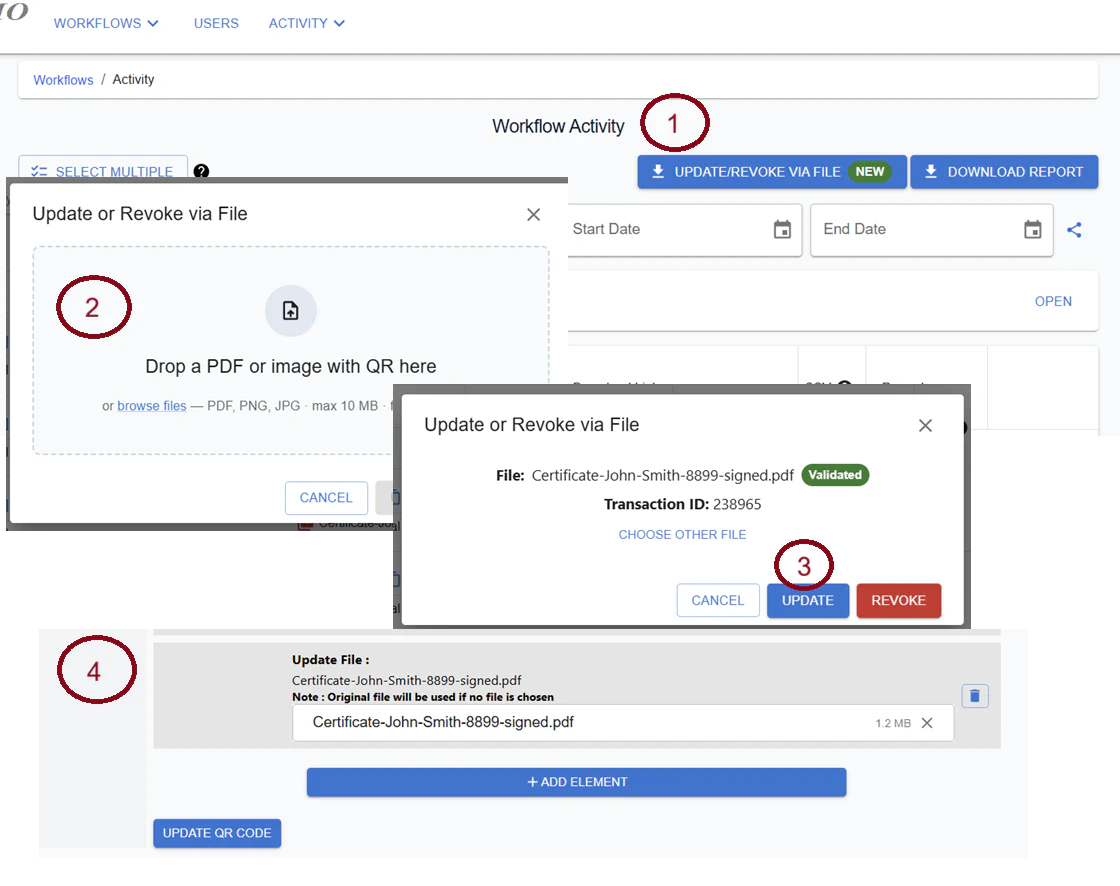 Screenshot: The new drag-and-drop modal for fast QR lifecycle management.
How It Works:
- Click the Button: Select the new “Update/Revoke via File” button on the Activity page header (marked with a “NEW” pill).
- Drop Your File: Drag and drop any PDF document, PNG, or JPG image containing the QR code (up to 10 MB).
- Automatic Extraction: The platform’s backend instantly extracts the QR code, verifies the unique ID (QUUID), and runs validation checks.
- Take Action: The Update and Revoke options become active. Clicking either will direct you to the familiar update page or revocation confirmation dialog.
🛡️ Security First
As always, security is at the core of everything we build. This feature includes robust guardrails:
- Organization Matching: Dash2 automatically verifies that the QR code belongs to your organization before enabling any action. QR codes from outside your organization are instantly rejected.
- Role-Based Restrictions: Only users with Owner, Admin, or User roles can use this feature. Operators are restricted from utilizing it.
- Clear Audit Trails: When a QR is modified using this feature, your activity logs and reports will note the exact filename used (e.g., “updated using file input invoice_123.pdf”), ensuring complete transparency.
⚙️ How to Enable the Feature
To ensure a smooth transition, this feature is disabled by default for existing organizations.
You can activate it today by going to your Organization settings and checking the “Enable Update/Revoke via File” toggle. For all new organizations onboarded after today, this option will be enabled by default.
🙌 Get in Touch
If you would like a live demonstration of this feature or need help configuring it for your team, please contact our support team or schedule a quick walkthrough. We are here to help you get the most out of Qryptal.
Recommendation: You may like to explore more …
Support for Verification PIN (V-PIN) in QR Code Validation
Countering Recruitment Fraud: The Power of Qryptal’s Secure QR Codes
Secure QR Codes Revolutionizing Diploma Verification and Reducing Fraud
Whitepaper on Document Security